Blocks to build your page
Build a link in bio, simple website, digital catalog, or QR code page.
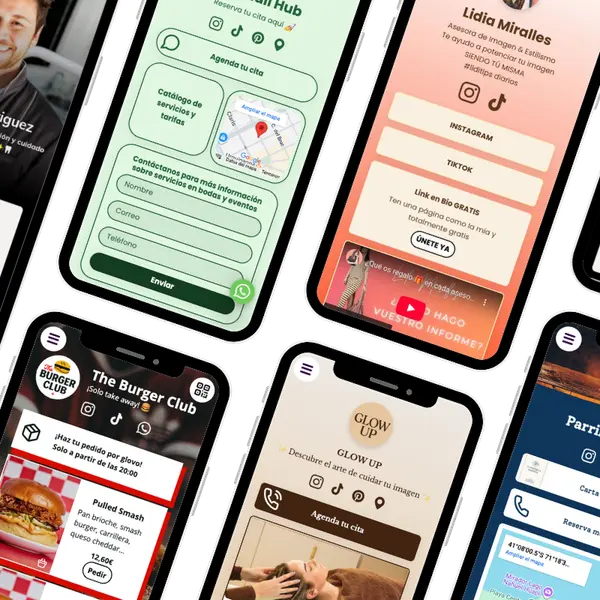
The building blocks
Page blocks are small parts you add to your page.
Content blocks
Use these blocks to explain what you do and guide visitors to the next step—follow, buy, book, or contact you.
-
 Links
Links
-
 Image
Image
-
 Photo carousel
-
 Video
Video
-
 File download
-
 Section title
-
 Text
Text
-
 Two columns
Contact
Use these blocks to let visitors contact you, ask questions, or take the next step instantly.
-
 WhatsApp button
-
 Phone call button
-
 Email button
-
 Contact form
-
Floating chat button
Business and sales blocks
Use these blocks to help customers find you, trust you, and visit or order faster.
-
 Products
-
 Opening hours
-
 Google Maps
-
 Reviews
-
 Ask for reviews
Other atom.bio features
Works anywhere, unlimited links, and more.
Customization
Make your page look like your brand.
-
Branding
-
Layout options
-
Fonts and long bio
Analytics and integrations
Understand what people click and where they come from.
-
Analytics dashboard
-
 Custom pixel and analytics integrations
-
Email notifications
Growth and distribution
Get more value from your page beyond the link.
-
Multilingual support
-
Showcase of success
-
Download your QR code
Block combinations by goal
Choose what you want to achieve with your mini website. Each setup shows the best blocks to use and a proven order to place them.
Local business page
For restaurants, shops, salons, clinics, studios, and any place people visit in person.
Recommended blocks: Google Maps, opening hours, WhatsApp button, links, images.
Best order: Intro → Opening hours → Map → WhatsApp → Links
See how to create a simple website
Examples: restaurant page, salon website
Professional services page
For freelancers, consultants, coaches, lawyers, therapists, and service providers who sell time or expertise.
Recommended blocks: service list (or price list), contact form (or booking link), WhatsApp button, links.
Best order: Intro → Services → Contact / Booking → Links
See how to create a simple website
Also useful: digital business card
Creator link in bio page
For Instagram, TikTok, YouTube, and any social profile where you share one link.
Recommended blocks: links, short intro text, featured video or image, discount code or referral link.
Best order: Intro → Top links → Video / Image → Offer / Code
Digital catalog or price list
For menus, services, or products people browse before they message you or place an order.
Recommended blocks: product or service list, images, WhatsApp button, links for payment or ordering.
Best order: Intro → Catalog / Services → Prices → WhatsApp → Order / Payment link
QR code page for a location
For tables, storefronts, posters, flyers, events, and anywhere people scan a QR code.
Recommended blocks: menu or catalog list, opening hours, Google Maps, contact buttons.
Best order: Menu / Catalog → Opening hours → Map → WhatsApp
After publishing, download your QR code and print it for tables, windows, or flyers.
Simple one-page website
For businesses and professionals who want a fast, shareable website without multiple pages.
Recommended blocks: intro text, services or links, images, contact buttons, map (if you have a location).
Best order: Intro → Services / Links → Images → Contact → Map
FAQ
Need broader setup, pricing, or product answers? Read the full FAQs.
What can I build with atom.bio?
You can build a simple website, a link in bio page, a digital catalog, a QR code page, or a digital business card.
All of them use the same blocks — you just change the order and the goal.
What is a link in bio?
It is a page with multiple links that you place in your bio (Instagram, TikTok, etc.).
It helps people reach your main links (WhatsApp, shop, bookings, content).
What is a block in atom.bio?
A block is a section of your page (link, WhatsApp, map, products, text, etc.).
You choose the blocks and order them based on your goal.
Can I use the same features for a website and a link in bio?
Yes. The same blocks work for both a website and a link in bio.
The difference is how you organize them and what you want visitors to do.
How is an atom.bio page different from a traditional website?
An atom.bio page is a single page made of blocks that you can update in minutes.
Traditional websites usually have many pages and menus, while atom.bio is designed for mobile use, social links, and QR codes.
How do I choose the right blocks?
Start with one goal, such as getting messages, bookings, or visits to your location.
Then add only the blocks that help people complete that goal.
You can use the block combinations above as a guide.
How do I add WhatsApp to my link in bio or website?
Add the WhatsApp button block and enter your phone number.
Visitors can tap the button and start a chat with you instantly.
This is commonly used by local businesses, restaurants, and service providers.
Can I add a WhatsApp pre-filled message?
Yes. You can set a default WhatsApp message so customers start the chat with context.
This helps you get better leads and faster replies—especially for bookings and orders.
Example message: “Hi! I’d like to book an appointment for [service] on [day/time].”
Can I track clicks on WhatsApp and links?
Yes. atom.bio tracks clicks so you can see what people tap the most (WhatsApp, Instagram, booking links, menus, etc.).
Use this to move your best-performing buttons higher and improve conversions.
Tip: Compare WhatsApp clicks vs. other links to learn what visitors prefer.
How do I add a menu or price list?
Use the product or service list block.
You can add item names, descriptions, prices, and images.
This works for restaurants, salons, professionals, and digital catalogs.
How do I add my business location?
Add the Google Maps block and set your address.
Visitors will see your location and can open directions in one tap.
This is useful for shops, restaurants, salons, and offices.
How do QR codes work with atom.bio?
Every atom.bio page has a QR code you can download.
When someone scans it, they open your page with your links, menu, or contact options.
QR codes are commonly used on tables, windows, flyers, and business cards.
Is atom.bio a link in bio tool?
Yes. You can use atom.bio as a link in bio for Instagram, TikTok, and other social networks.
You can also use the same page as a simple website or QR landing page.
Are all features available for free?
Yes. All core blocks and features are free to use.
A Premium plan removes atom.bio branding and promotional banners.
Ready to build your page? It is free and easy.
See these blocks in action
Move from features to the page type that fits your goal, then compare plans only when you are ready.
Explore link in bio
Yes. You can use atom.bio as a link in bio for Instagram, TikTok, and other social networks.
Create a link in bio pageExplore website builder
You can also use the same page as a simple website or QR landing page.
Create your websiteCompare pricing plans
A Premium plan removes atom.bio branding and promotional banners.
Compare pricing plans